
Have You Ever Wished for a Personal Tech Guru?
Have you ever had one of those frustrating moments when something just isn’t working right on your computer? You know exactly what you want to achieve, but you find yourself lost in a maze of menus, wishing you had a personal tech guru standing right over your shoulder. We’ve all been there—staring at the screen, thinking, “If only someone could just walk in, take the mouse, and do this for me!”
While calling tech support isn’t always an option—especially if you’re an entrepreneur burning the midnight oil or waking up at 4:00 AM to get ahead—there is a groundbreaking new solution. In a recent session with Terry Brock and Gina Carr from Stark Raving Entrepreneurs, a game-changing AI tool was revealed that acts exactly like that over-the-shoulder tech expert. It doesn’t just tell you how to solve your problem; it actually takes over and does it for you.
Let’s dive into how you can use this incredible tool to automate tedious tasks, navigate confusing software settings, and instantly build Standard Operating Procedures (SOPs) for your business.
Check out the full video here:
Full video – Google Gemini’s Agent in Action
Meet Your New Best Friend: The Gemini Agent
The secret weapon that is quickly becoming a tech best friend for entrepreneurs is a feature called Browse with AI (formerly known as Gemini Agent). Powered by Google’s advanced language models, this tool lives right in the top right corner of your Google Chrome browser.
Unlike traditional search engines where you type in a query, read an article, and try to follow the steps yourself, Browse with AI takes a completely hands-off approach. You simply describe your problem in plain English, and the AI agent takes control of your browser to execute the task on your behalf.
Note: To access these advanced capabilities, you do need a premium subscription, such as Google Gemini Advanced or Gemini AI+, which currently runs about $20 a month. However, as you’ll see, the time and frustration it saves easily justify the investment.
Real-World Application 1: Automating Google Docs
To understand the sheer power of this tool, let’s look at a common, everyday scenario. Imagine you have an 11-page Google Document—perhaps a guide or a lead magnet—and you suddenly realize you need to insert page numbers at the bottom right of every page. You’re in a hurry, and you simply can’t remember which menu tab houses the page number formatting options.
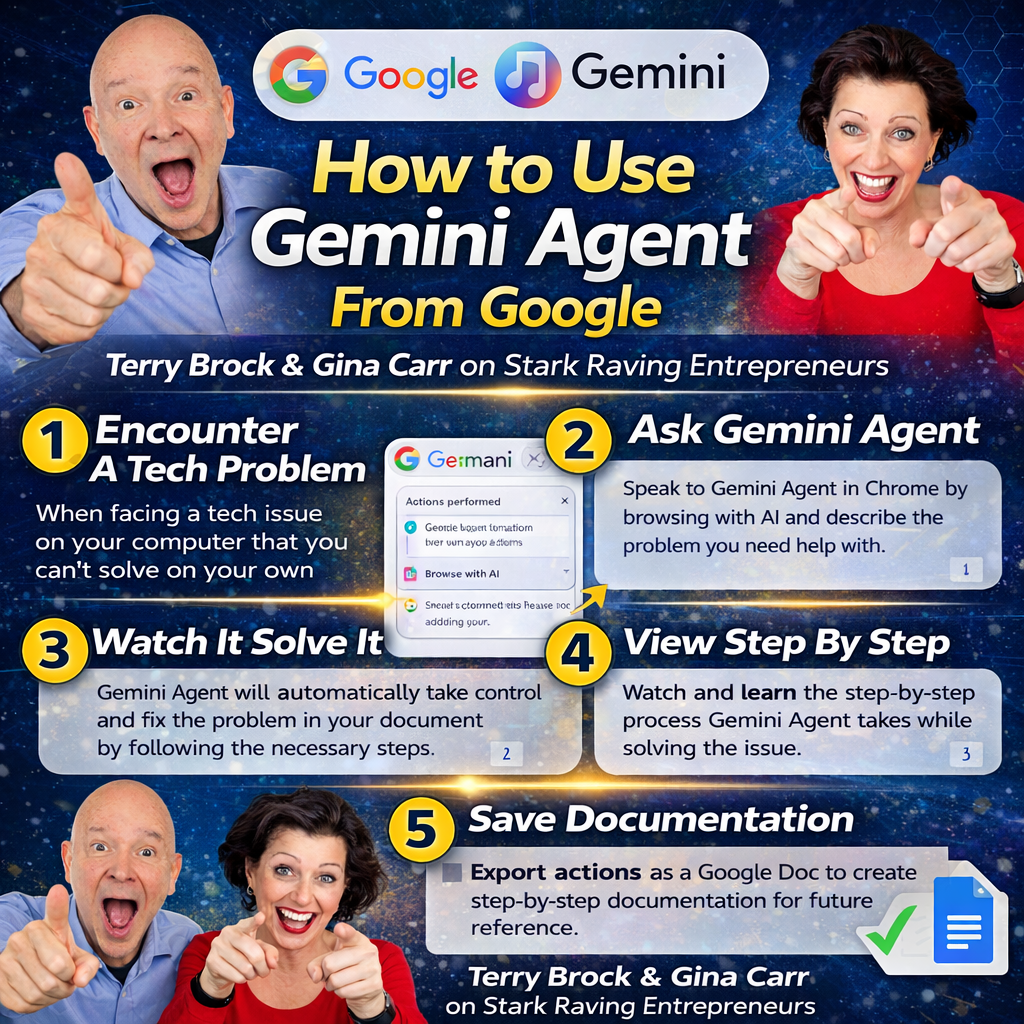
Instead of clicking around aimlessly or Googling a tutorial, you can use Browse with AI. Here is exactly how the process unfolds:
-
Open the Tool: Click the Browse with AI icon in the top right corner of your Chrome browser.
-
Enter a Plain English Prompt: Type something simple, like: “Please turn on page numbers in this document. Put them at the bottom right of each page.”
-
Watch the Magic Happen: The AI will display a “Task Started” notification. Suddenly, without you touching your mouse, menus will open, options will be selected, and your task will be completed.
It is a true “look, no hands” experience. And don’t worry about losing control—there is always a “Take Over Task” button at the top of the screen. If the AI starts doing something you didn’t intend, you can instantly pause or stop it.
The Hidden Superpower: Creating Instant SOPs
While having an AI format your document is impressive, the real magic for business owners lies in what happens next. As the Gemini Agent performs the task, it generates a real-time list of the exact steps it is taking on the right-hand side of your screen.
Once the task is finished, you can click a simple options menu and select Export to Docs. In seconds, you have a fully written, step-by-step Standard Operating Procedure (SOP) saved in a fresh Google Doc.
Think about the implications of this for your business. You can use this feature to build a comprehensive library of systems and procedures. The next time you hire a Virtual Assistant (VA) or onboard a new team member, you won’t have to spend hours writing training manuals. You simply let the AI do the task once, export the steps, and hand the resulting SOP over to your team. It is a massive leap forward for systems engineering and business scaling.
Real-World Application 2: Navigating Complex Zoom Settings
Let’s look at a slightly more advanced use case. We’ve all hosted or attended a Zoom meeting where someone pops into the room late, unaware that their microphone is on. The background noise disrupts the speaker, distracts the attendees, and creates an unprofessional experience.
The solution is to change your Zoom settings so that participants are automatically muted upon entry. However, if you’ve ever looked at the backend of Zoom, you know that the settings menu is a labyrinth of checkboxes, toggles, and sub-menus. Finding one specific setting can feel like looking for a needle in a digital haystack.
Instead of wasting time hunting for the right toggle, you can deploy your AI assistant. You simply open your Zoom settings page, launch Browse with AI, and type: “Please turn on my setting so that when people enter my meeting, they are automatically muted.”
The AI will navigate the complex menus, find the exact setting, and toggle it for you. Even better, if the AI reaches a decision point where it needs your input, it will pause and ask you a question before proceeding. You can literally start the AI on a task, switch to another tab to answer emails, and come back a few minutes later to find your software perfectly configured.
Key Takeaways and Actionable Insights
The integration of AI agents into our daily web browsing is a monumental shift for entrepreneurs. Here are the core insights you should take away from this technology:
-
Stop Searching, Start Delegating: Treat your browser’s AI not just as a search engine, but as an active virtual assistant capable of executing multi-step tasks.
-
Speak Naturally: You don’t need to learn complex prompt engineering. Plain, conversational English works perfectly to instruct the AI.
-
Automate Your Documentation: Use the AI’s step-tracking feature to instantly generate SOPs. Export these steps to Google Docs to create a training library for future VAs and employees.
-
Eliminate Tech Frustration: Use the AI to navigate complex, frequently changing software menus (like Zoom or CRM settings) so you can focus on high-level business growth.
-
Embrace the Learning Curve: The AI tells you exactly what it’s doing as it works. Use this as a learning opportunity so you can understand your software better in the future.
Conclusion: Step Into the Future of Entrepreneurship
Being an entrepreneur can sometimes feel like a lonely journey, especially when you’re battling technology late at night or early in the morning. But with tools like Google’s Gemini Agent and Browse with AI, you no longer have to struggle through tech hurdles alone. You now have a virtual systems engineer ready to configure your software, format your documents, and write your training manuals on command.
If you are ready to stop wasting time on tedious tech tasks and want to discover even more ways to leverage artificial intelligence for your business, Terry Brock and Gina Carr have put together an incredible resource just for you.
Call to Action: Head over to http://aitools4biz.com (that’s AI tools, the number 4, biz dot com) to grab a special toolkit of resources. You’ll find instructions, videos, and recommendations for powerful tools like Gamma, ChatGPT, CastMagic, and more. Don’t navigate the AI revolution alone—join the Stark Raving Entrepreneurs community today, ask questions in the lab, and connect with other forward-thinking business owners who are scaling faster with AI!
For your convenience, here’s a transcript of this episode:
Terry Brock [00:00:00]:
Have you ever had one of those times when something’s not working just right on your computer and you wish you had a tech guru, somebody that could be there to walk in and go, oh, you do this and this and this. Sometimes we can call, but sometimes you don’t have that available. Well, in this video, we’re gonna show you how we can do that, and we’re gonna make it happen. I’m Terry Brock with Stark Raving Entrepreneurs, and I’m joined by Gina Carr, my partner there. Gina, how can we handle that kind of a situation and make sure that we’re able to get help? You’ve got a trick that you demonstrated to our start raving entrepreneurs just the other day. What is that?
Gina Carr [00:00:33]:
Well, there’s this super tool that’s now my tech new best friend. It’s called Gemini Agent. And I tell it the problem, and I ask it to solve the problem for me, and and it does. And I usually do this after I’ve exhausted the normal steps of, doing a search myself, what are the steps I need to take. And, increasingly, I just rely on it to do it for me. So it’s really wonderful.
Terry Brock [00:00:59]:
Okay. Well, I understand you got your screen ready to go. So would you go ahead and share your screen with us and tell us what we’re doing here and the example you’ve got?
Gina Carr [00:01:08]:
Okay. So an example that, one example the first example I’m gonna show is a pretty basic thing, and that is putting a page number at the bottom of your Google Docs. Now that you may know how to do that, but there may be something else that you don’t know how to do. And so this would this will be a good example for you to follow. So let’s just take a quick look here at a Google Doc. And the one I’ve pulled up is one that we used in a recent stock raving entrepreneurs session where you we were teaching about LinkedIn news video. And, so it’s a Google Doc. It’s kinda long.
Gina Carr [00:01:43]:
I can see it’s about 11 pages, and I just wanna insert page numbers here. And I don’t remember how to do that. I’m in a big hurry. And so I’m gonna go up here to my top right corner, and this is called browse with AI. Yesterday, they called it Gemini, but the button name changed. Now it’s called browse with AI, which I guess makes more sense to people. And this top right corner of my Google Chrome browser, I’m just gonna come down here and tell it to, please, oops, please. I usually say please.
Gina Carr [00:02:17]:
Turn on page numbers in this document. Put them at the bottom right of each page. Okay. Now, again, you may know how to do this, but maybe there’s something else you don’t know how to do and you’re having trouble. You can use something like this. Now you can see, top right corner over here, you see my cursor. It says task started. And you can see up here at the top, it says take over the task.
Gina Carr [00:02:52]:
So I can pause it. If it’s doing something in my document, I’m like, oh my gosh. No. Stop. Stop. Stop. But look. No hands.
Gina Carr [00:02:57]:
No hands, guys. It’s doing all this stuff. It’s opening all these different menus and options.
Terry Brock [00:03:05]:
It’s telling me Excuse me for interrupting, but you’re what you’re doing there, it is actually doing this for you. Right?
Gina Carr [00:03:11]:
It is doing it for me totally, and it’s telling me right here on the right hand side what it’s doing exactly so I can learn as it goes. And next time, I might remember, and I might just do it myself. Again, this is something I do often, so I don’t really need help for it, but there’s other things that I need help for. Now you can see it is taking a little bit of time because it’s doing things for me on my behalf. So it’s trying to be double careful that it doesn’t make any errors, which is a good thing. If you’ve got an agent working for you, then then you want that to happen.
Terry Brock [00:03:50]:
And that’s changing. That was gonna be handy to have so that you’re able to bring in what you need, when you need it, and it’s showing you the steps over there. So if someone might say, well, I don’t worry about page numbers. Well, this can be used for lots of things. Is that right, Gina?
Gina Carr [00:04:04]:
Yes. And it is important, to note that I have what’s called Google or Gemini plus or Gemini AI plus, something like that. You do have to have that version. I I’m paying $20 a month, and it does a lot of other cool things, but it’s doing this. And alright, so you can see there, it started the task. We can see a number here. Let’s scroll to the next page. We see a number there.
Gina Carr [00:04:30]:
Yay. It worked. And so the task started. The task is done. And now some of you may say, well, what can we do next? And I could just do a quick, give me those steps here. And so I’m asking it it it it deleted the steps that it was already giving me, but now I have these steps here. And look at this magic too. If I wanted to, I could just click these dots right here, and I can export it to a Google Doc.
Terry Brock [00:05:05]:
That’s nice. So, Gina, what you’ve just done there, you created documentation. It could have some standard operating procedures, SOPs, and you just created exactly what to be done, and you can then put that in there for your VAs to look at, for you to remember in the future, etcetera. That seems pretty amazing.
Gina Carr [00:05:25]:
I think it is. It’s it’s just like magic, to me. And so you can see that with this just a couple of clicks there. I didn’t have to copy paste. I just clicked the export to docs. Now I could have drafted a a Gmail, and then it, send it to Google Doc, and then I have it right here. So I and I could share it with you. I think this is really wonderful.
Terry Brock [00:05:48]:
I would have to agree. I think that this has got some capabilities that are gonna be outstanding for many different applications. So I think we can all relate to this. Those times when you were there at, something happening and something was going on and you wanted to be able to get some answers it might be at a time of day when you’re not available. Often we get up early and I like to get up sometimes at four in the morning and regularly do that. Well there’s a lot you can do but there’s not a lot of support available in the support desks But we do have Gemini or other LLMs that can do similar kind of things. Gina, you just hit on another gem that can be real useful for this. And it would seem like you could build that standard operating procedure as a as a systems engineer that you are.
Terry Brock [00:06:35]:
You would be able to, develop a whole set of systems and, procedures that you go through. It seems like that would be a good idea. What are your thoughts?
Gina Carr [00:06:43]:
Yeah. I I I think it’s great. And, you know, what I just demonstrated was a very basic use of it. Would you like to see a just a slightly more advanced use?
Terry Brock [00:06:53]:
Okay. Sure.
Gina Carr [00:06:54]:
Okay. How many times are you hosting a Zoom meeting with your colleagues or prospects or clients or whatever, and it’s for multiple people, And somebody pops in the room and there’s background noise going on. It disrupts your whole flow. It distracts everyone. It’s a very unpleasant experience. So I like to make sure that my settings in my Zoom meetings are mute people automatically upon entry. Right? Do you do you do that with yours, Terry?
Terry Brock [00:07:25]:
Occasionally, yes. I might make sure that it’s, by default, someone’s not, letting their sound come through because they would might not want to do it. They might not know what’s happening. And there’s a sound that’s, going on the background. So it’s a good idea to have this as a default.
Gina Carr [00:07:39]:
Okay. So this is just another example where you’re thinking, I really need to change that setting, but I don’t know how to do it. And here’s what happens for a lot of a lot of our clients, in our community, our start creating community and start creating entrepreneurs community that is. They get to Zoom, they open it up, and then they see, oh my gosh. I have no idea where to go. Look at all these settings over here. Oh, I finally see settings. And then I open settings, and then I see all these options.
Gina Carr [00:08:11]:
Like, oh my gosh. What on earth do I do? Well, usually, when I get stuck, what I do now is, let’s say that I’ve tried it myself. I’ve looked around, but I go to browse with AI, top right corner again, and I’m going to ask it right down here. I’m gonna say, please turn on my setting so that when people enter my meeting, they are automatically muted. Alright. So that’s all I’m giving it, just a basic English conversation. It’s not some fancy prompt. I’m just telling my my little virtual assistant here, my tech guru, what I want it to do.
Gina Carr [00:09:05]:
And, again, you can see no hands. You see that it’s taking over. It’s telling me what it’s doing. It’s navigating the meeting settings. Again, you see the option up at the top. It could take over task. Terry, do you see how this could be valuable for folks?
Terry Brock [00:09:21]:
Yeah. I can see this is gonna be helpful. You’re getting someone to do it for you. Now it might take a little bit longer that first time, but also it’s creating the steps so that now you can tell others, here’s what you do in this situation. If you have multiple people you wanna contact and for yourself. Often, we do something with computers that we’re going to do right now, but we don’t do it again until six months later. We’re thinking, how did I do that? Well, this is where you’re building your standard operating procedures, your SOPs. You’re putting those together, and this is giving you a beautiful way to do it.
Terry Brock [00:09:57]:
Gina, I think this is pretty amazing.
Gina Carr [00:10:00]:
Yeah. I agree. Now this one, it did do, fairly quickly. It was faster than setting up the the page number in the Google Doc. But you can see task started. I can show the steps. Task done. It’s all set.
Gina Carr [00:10:15]:
And so, again, you may know how to do this or you may already have that setting set in your Zoom. But we, we do sell the Zoom enterprise subscription, and often our folks are asking us about different settings and how to do things. And so I can send over procedures, and then they can be followed. But what I find a lot of times with our clients as well as myself is sometimes I get stuck, and what it said should be there is not there. Things have changed. And so I love now that I can just set this. I can work on something else. I can pull up another screen or tab and do something else.
Gina Carr [00:10:55]:
I don’t have to sit right there and monitor it as it’s going through the work. When I come back to it in a few minutes, I’ll see if it’s done or not or if it’s waiting for me. Sometimes when it gets to a decision point, it will ask me a question. It will wait for me to answer before it proceeds on. I absolutely love this, and this is a game changer for anyone who’s spending much time on their computer.
Terry Brock [00:11:19]:
Absolutely. Gina, we really appreciate you sharing that. It’s something that we can use in many different applications, and we would encourage you watching this to let us know what is it that you could do. What are some tasks that you would wanna do? Wherever you’re catching this, whether it’s on YouTube or LinkedIn or Facebook or any of the other platforms where we put this out, we wanna hear from you and find out what it is that can help you best to achieve that. And matter of fact, we’ve got something special that we put together that we wanna share with you.
Gina Carr [00:11:47]:
Yes. Absolutely. We invite you to grab our special tool of resources. What are the resources that Terry and I are recommending? We call it aitoolsforbiz.com. Aitools,thenumberfour,biz,biz,.com. You can use your QR code QR code right there, or you can go to the domain. And this is filled with lots of goodies, instructions, and videos, of some of our favorite tools like Gamma and, of course, ChatGPT and CastMagic and Taja. So you can you can check those out.
Gina Carr [00:12:24]:
And, just just go right over there, and it’ll get you plugged into this resource as well as all the other great things we’re doing in our star craving entrepreneurs community, which is a great place for people who want to know how to use these tools. You can come in and ask questions in our lab. You know, you can get all this information. You can have your tech guru helping you, but still you wanna be a lot of people wanna be in a community of others who are working on similar goals. You know, entrepreneurship can be a very lonely place. And so we provide our start craving entrepreneurs so that you have those other folks that are super smart and bright and helpful who are going to help you reach your goals. And, Terry, I’m so glad that we created that community many years ago and that it’s still thriving today.
Terry Brock [00:13:11]:
Yes. It is. It’s something that people really enjoy. We often say people will come for the content that we have, but they stay for the community because the community gives that support in helping them out. So, Gina, thank you very much for being with us today. Glad to have you with us here on the video once again. And so what we wanna do now is to move along to give you even more information, some good things. Matter of fact, we’ve got a special video coming up right over here that’s gonna help you.
Terry Brock [00:13:36]:
If you’re catching this on YouTube, if you’re catching this in another format, come on over and see us. If you got a question, we wanna hear from you. I’m Terry Brock joined by Gina Carr, and we appreciate you and look forward to seeing you next time. Thank you very much for being with us today.
And for our Spanish speaking friends, here’s the complete transcription for you in Spanish:
¡Por supuesto! Aquí tienes la transcripción del episodio traducida al español:
Terry Brock :
¿Alguna vez has tenido uno de esos momentos en los que algo no funciona bien en tu computadora y desearías tener un gurú tecnológico, alguien que pudiera entrar y decir, “haz esto, esto y esto”?
A veces podemos llamar, pero a veces no tienes esa opción disponible.
Bueno, en este video te vamos a mostrar cómo podemos hacerlo y hacer que suceda.
Soy Terry Brock en Stark Raving Entrepreneurs, y me acompaña Gina Carr, mi compañera.
Gina, ¿cómo podemos manejar esa situación y asegurarnos de recibir ayuda?
Tienes un truco que mostraste a nuestros Stark Raving Entrepreneurs el otro día.
¿Cuál es?
Gina Carr:
Bueno, hay una súper herramienta que ahora es mi nueva mejor amiga tecnológica.
Se llama Gemini Agent.
Le cuento el problema y le pido que lo resuelva por mí, y lo hace.
Normalmente hago esto después de haber agotado los pasos normales de buscar yo misma cuáles son los pasos que debo seguir.
Cada vez más, confío en ella para que lo haga por mí.
Es realmente maravillosa.
Terry Brock :
Entiendo que tienes la pantalla lista.
¿Puedes compartir tu pantalla con nosotros y explicarnos qué estamos haciendo aquí y el ejemplo que tienes?
Gina Carr:
Ok.
Un ejemplo, el primer ejemplo que voy a mostrar es algo bastante básico, y es poner un número de página al pie de tu Google Docs.
Puede que sepas cómo hacerlo, pero puede haber otras cosas que no sepas hacer.
Así que este será un buen ejemplo a seguir.
Vamos a echarle un vistazo rápido a un Google Doc.
El que tengo abierto es uno que usamos en una sesión reciente de Stark Raving Entrepreneurs donde enseñábamos sobre video de noticias de LinkedIn.
Es un Google Doc bastante largo.
Gina Carr:
Puedo ver que tiene 11 páginas y solo quiero insertar números de página aquí.
No recuerdo cómo hacerlo.
Estoy apurada.
Así que voy arriba, a la esquina superior derecha, donde dice “browse with AI”.
Ayer se llamaba Gemini, pero el nombre del botón cambió.
Ahora se llama “browse with AI”, que supongo tiene más sentido para las personas.
En la esquina superior derecha de mi navegador Chrome, bajo aquí y le digo: “por favor, activa los números de página en este documento”.
Gina Carr:
Ponlos en el pie de cada página a la derecha.
Ok.
Puede que sepas cómo hacer esto, pero quizá haya otra cosa que no sepas hacer y tengas problemas.
Puedes usar algo como esto.
Puedes ver que, en la esquina superior derecha, mi cursor dice “tarea iniciada”.
Arriba dice “tomar la tarea”.
Gina Carr:
Así que puedo pausarla.
Si está haciendo algo en mi documento y quiero que se detenga, puedo parar.
Pero fíjate, manos libres.
Gina Carr:
Manos libres, chicos.
Está haciendo todo esto.
Está abriendo todos los menús y opciones.
Terry Brock :
Disculpa que te interrumpa, pero lo que estás haciendo ahí, ¿realmente lo está haciendo por ti?
Gina Carr:
Sí, totalmente.
Y me está diciendo en el lateral derecho qué está haciendo exactamente para poder aprender mientras lo hace.
Y la próxima vez, tal vez lo recuerde y lo haga yo misma.
Esto es algo que suelo hacer a menudo, así que no necesito ayuda para esto, pero hay otras cosas para las que sí necesito ayuda.
Como puedes ver, está tardando un poco porque está actuando por mí, tratando de ser muy cuidadosa para no cometer errores, lo cual es bueno.
Si tienes un agente trabajando para ti, quieres que sea así.
Terry Brock :
Eso está cambiando.
Va a ser muy útil para tener lo que necesitas, cuando lo necesitas, y te muestra los pasos.
Si alguien dice que no le preocupa los números de página, esto puede usarse para muchas cosas.
¿Es así, Gina?
Gina Carr:
Sí.
Y es importante destacar que tengo lo que se llama Google o Gemini Plus o Gemini AI Plus, algo así.
Debes tener esa versión.
Pago 20 dólares al mes, y hace muchas otras cosas geniales, pero está haciendo esto.
Puedes ver que la tarea empezó.
Hay un número aquí.
Desplazo a la siguiente página y hay otro número.
Gina Carr:
¡Sí! Funcionó.
La tarea empezó y terminó.
Y algunos dicen: ¿qué podemos hacer después?
Yo podría pedir que me dé los pasos aquí.
Le pido, y me da los pasos.
Y mira esta magia.
Si quiero, puedo hacer clic en estos puntos y exportar a Google Doc.
Terry Brock :
Eso es genial.
Gina, lo que acabas de hacer ahí, creaste documentación.
Puede servir para procedimientos estándar, SOPs, y creaste exactamente lo que debe hacerse, y puedes ponerlo para tus asistentes virtuales, para recordarlo en el futuro, etc.
Eso parece impresionante.
Gina Carr:
Me parece mágico.
Con un par de clics, no tuve que copiar y pegar.
Solo hice clic en exportar a Docs.
Podría haber redactado un correo en Gmail y luego enviarlo a Google Doc, y lo tengo justo aquí.
Y puedo compartirlo contigo.
Creo que es realmente maravilloso.
Terry Brock :
Estoy de acuerdo.
Esto tiene unas capacidades increíbles para muchas aplicaciones.
Todos podemos relacionarnos con esto.
Esos momentos cuando sucede algo y quieres obtener respuestas, pero no hay soporte disponible.
Muchas veces me levanto temprano, a veces a las 4 de la mañana.
Hay muchas cosas que puedes hacer, pero no mucho soporte técnico disponible.
Pero tenemos Gemini o otros LLMs que pueden hacer cosas similares.
Gina, acabas de presentar otra joya muy útil.
Se puede construir procedimientos estándar, como ingeniera de sistemas que eres.
Terry Brock :
Podrías desarrollar todo un conjunto de sistemas y procedimientos para seguir.
¿Crees que sería buena idea?
Gina Carr:
Sí, creo que es genial.
Y lo que acabo de demostrar es un uso muy básico.
¿Quieres ver un uso un poco más avanzado?
Terry Brock :
Claro.
Gina Carr:
Bien.
¿Cuántas veces estás organizando una reunión en Zoom con colegas, prospectos, clientes, y hay varias personas?
Alguien entra y hay ruido de fondo.
Eso rompe toda la dinámica.
Distracta a todos.
Es muy desagradable.
Así que me gusta asegurarme de que mis ajustes de Zoom sean silenciar automáticamente a las personas al entrar.
¿Lo haces con tus reuniones, Terry?
Terry Brock :
A veces, sí.
Me aseguro de que, por defecto, alguien no deje que su sonido salga porque quizá no quiera y ni se dé cuenta.
Puede haber sonido de fondo.
Es buena idea tenerlo por defecto.
Gina Carr:
Este es otro ejemplo donde piensas: necesito cambiar ese ajuste, pero no sé cómo hacerlo.
Lo que ocurre con muchos de nuestros clientes en la comunidad, nuestra comunidad Stark Raving Entrepreneurs, es que abren Zoom, y ven que no tienen ni idea de dónde ir.
Ven todos estos ajustes.
Por fin ven ajustes y abren, pero hay muchas opciones.
Gina Carr:
Dicen “¿qué hago?”.
Cuando me atasco, hago esto: intento por mí misma, busco, pero voy a “browse with AI”, esquina superior derecha, y le pido:
“Por favor, activa el ajuste para que cuando la gente entre a mi reunión estén automáticamente en silencio”.
Gina Carr:
Eso es todo lo que le doy, una petición en inglés básico.
No es un prompt sofisticado, solo le digo a mi asistente virtual, mi gurú tech, lo que quiero que haga.
Gina Carr:
Y de nuevo, manos libres.
Está tomando el control.
Me dice lo que está haciendo, está navegando los ajustes de reunión.
De nuevo, arriba la opción de tomar la tarea.
Terry, ¿ves cómo esto podría ser valioso para la gente?
Terry Brock :
Sí, veo que es útil.
Alguien lo hace por ti.
Puede que tarde un poco más la primera vez, pero también está creando los pasos para que puedas decir a otros qué hacer.
Si tienes a varias personas y para ti mismo.
Muchas veces hacemos algo en computadora que repetimos meses después y pensamos “¿cómo lo hice?”.
Aquí es donde construyes procedimientos estándar, tus SOPs.
Esto te da una forma bonita de hacerlo.
Terry Brock :
Gina, esto es asombroso.
Gina Carr:
Sí, estoy de acuerdo.
Esta tarea fue rápida, más que insertar el número de página en Google Doc.
La tarea empezó, puedo mostrar los pasos.
Tarea completada, todo listo.
Gina Carr:
Quizá sabes cómo hacer esto o ya tienes ese ajuste en Zoom.
Vendemos la suscripción enterprise de Zoom, y a menudo nuestros clientes nos preguntan por ajustes y cómo hacer cosas.
Puedo enviar procedimientos y pueden seguirse.
Muchas veces, tanto nuestros clientes como yo, nos quedamos atascados, y lo que debería estar no está, o algo ha cambiado.
Me encanta que puedo poner esto, trabajar en otra cosa, abrir otra pestaña.
Gina Carr:
No tengo que vigilar mientras trabaja.
Cuando vuelva en unos minutos, veré si ha terminado o espera por mí.
A veces, cuando llega a un punto de decisión, pregunta y espera mi respuesta.
Me encanta esto y es un cambio radical para cualquiera que pase tiempo frente a la computadora.
Terry Brock :
Absolutamente.
Gina, realmente te agradecemos compartir esto.
Podemos usarlo para muchas aplicaciones, y animamos a quienes vean esto a decirnos qué tareas les gustaría hacer.
¿Dónde nos ves, en YouTube, LinkedIn, Facebook o en otra plataforma?
Queremos saber de ti para ayudarte a lograrlo.
De hecho, tenemos algo especial que queremos compartirte.
Gina Carr:
Sí, absolutamente.
Te invitamos a que tomes nuestro recurso especial de herramientas.
¿Cuáles son los recursos que recomendamos Terry y yo?
Lo llamamos aitoolsforbiz.com.
Aitools, el número cuatro, biz, punto com.
Puedes usar el código QR ahí o ir al dominio.
Está lleno de instrucciones, videos, y nuestras herramientas favoritas como Gamma, ChatGPT, CastMagic y Taja.
Puedes consultarlas.
Gina Carr:
Solo debes ir allí, y te conectará con este recurso y todas las otras cosas maravillosas que hacemos en nuestra comunidad Stark Raving Entrepreneurs, un gran lugar para quienes quieren aprender a usar estas herramientas.
Puedes entrar y preguntar en nuestro lab.
Puedes obtener toda esta información.
Puedes tener tu gurú tech ayudando, pero muchos quieren estar en comunidad con otros con objetivos similares.
El emprendimiento puede ser un lugar muy solitario.
Ofrecemos Stark Raving Entrepreneurs para que tengas a gente inteligente y dispuesta a ayudarte a lograr tus metas.
Terry, me alegra que creáramos esa comunidad hace años y que siga prosperando hoy.
Terry Brock :
Sí, lo es.
A la gente realmente le gusta.
Decimos que vienen por el contenido, pero se quedan por la comunidad porque el apoyo es enorme.
Gina, gracias por acompañarnos hoy en el video.
Ahora queremos seguir para darte aún más información y cosas buenas.
Tenemos un video especial que viene que te ayudará.
Terry Brock :
Si estás en YouTube o en otro formato, ven a vernos.
Si tienes una pregunta, queremos saberla.
Soy Terry Brock junto a Gina Carr, te apreciamos y esperamos verte la próxima vez.
Gracias por acompañarnos hoy.
Si necesitas la transcripción con los timestamps incluidos o algún segmento específico, solo házmelo saber.